You've built a Power Pages site. Now marketing wants 30 new content snippets, in two languages. You open management, click "New", fill the form, save. Click "New". Fill. Save. After the tenth, you want to throw your laptop out the window.
There's a better way. The enhanced data model stores content snippets in a Dataverse table you can export to and re-import from Excel. You prepare 60 snippets in a spreadsheet and load them all at once. Not a hidden feature, just not in the obvious place: most of us learn Power Pages through the design studio, where bulk operations don't exist.
One table for (almost) everything: Site Component
For years, Power Pages configuration lived in adx_*-prefixed tables (adx_contentsnippet, adx_webfile, and so on). The enhanced data model (rolled out 2023/2024 for new sites) consolidates that into one Dataverse table: display name Site Component, logical name powerpagecomponent. Each row carries a Component Type that discriminates it.
Microsoft documents the types explicitly, among them: Content Snippet (type 7), Web Template (8), Site Setting (9), Web Page Access Control Rule (10), Web Page (2), Web File (3), Table Permission (18), Web Role (11), and about two dozen more. All in one table.
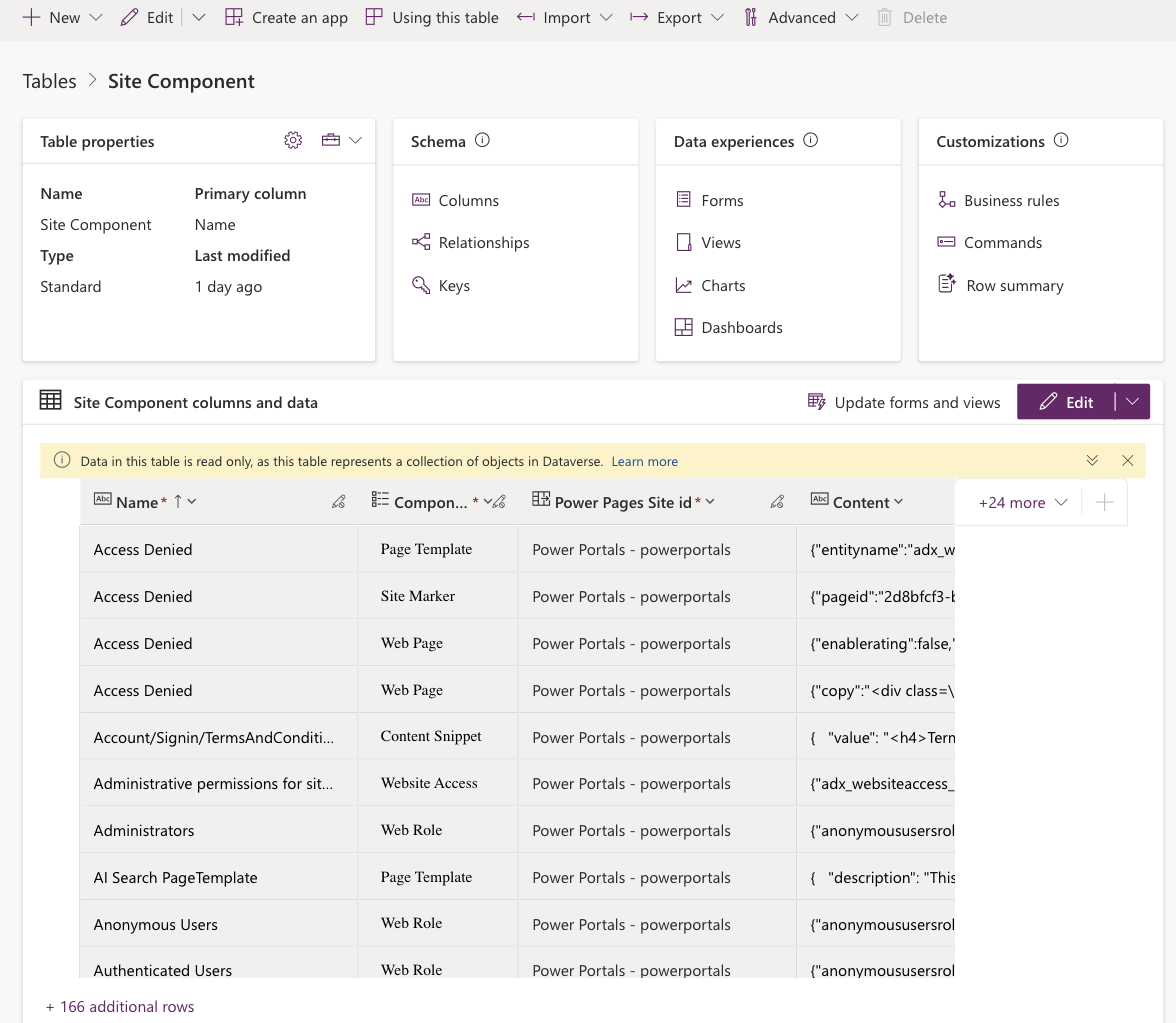
Two details worth knowing:
- Over the physical
powerpagecomponenttable sit per-type virtualmspp_*tables (mspp_contentsnippet,mspp_webtemplate,mspp_sitesetting, ...). You access them in a typed way; the Site Component table is the shared base. That's exactly why a snippet looks different depending on the access path. - Power Apps shows the Site Component table as read only ("this table represents a collection of objects in Dataverse"). The export/import path still works, and it runs through exactly this table.
The Content field: a JSON envelope
For a content snippet row, the content sits in the Content field as JSON:
{"value": "Saved.", "type": 756150000}| Key | Meaning |
|---|---|
| value | The actual text or HTML that renders |
| type | 756150000 = Text, 756150001 = HTML |
Honesty note: the type codes 756150000 (Text) and 756150001 (HTML) are officially documented (as the mspp_type option set). The JSON envelope format of the Content field, however, is not documented by Microsoft, it's my observation, verified live in the demo portal. Through the typed mspp_contentsnippet view, value and type sit in separate columns (mspp_value, mspp_type); in the Site Component table they're combined into the Content JSON.
Text snippets render escaped (safe by default), HTML snippets render as-is. Only pick HTML when you actually need markup, otherwise you're taking on an XSS surface you don't need.
The round-trip
1. Export a template
In make.powerapps.com pick the environment, under Tables open Site Component, filter the view to your snippets (and your site), then Export to Excel / Edit in Excel. You get an .xlsx with the matching rows and a live Dataverse connection.
2. Edit in Excel
Existing snippets: change the value in the Content field. New snippets: add rows with Name (e.g. Common/Status/Saved), Component Type (Content Snippet), Power Pages Site id (the site display name), Content (the JSON above), and Power Pages Site Language Id (language display name, e.g. English, German - Germany).
Important: the exported file contains hidden required/control columns you must not touch (labelled (Do Not Modify) ... in the file: Row ID, Row Checksum, Modified On). Microsoft describes them in the docs as "required hidden columns"; the exact label wording is my observation from the file. For new rows, leave these columns empty, Dataverse generates the IDs on import.
3. Publish
Publish in the Excel add-in uploads the changes. New rows without a key are inserted, existing ones updated. Two documented rules: rows are processed sequentially, and an error in one row aborts the following ones (preceding rows are kept). And: if a record was changed elsewhere between export and import, the import reports a conflict for that row (checksum / modified-on staleness).
Pitfalls
Wrong file format
The export is an Excel file with a Dataverse connection. Saving as CSV or opening in Numbers/LibreOffice cuts the connection, and Publish stops working. Stay in real Excel (desktop or Web).
Filling the control columns by accident
Copy a row to make a new snippet and you easily drag the GUID and checksum along. Then Dataverse tries to UPDATE the source row instead of INSERTing, and you've just renamed your old snippet. Always blank the control columns on new rows.
Site display name, not logical name
Power Pages Site id wants the display name. With several similarly named sites you get ambiguity errors at publish. Filter the export view to your site first, that pins the column.
Language display name
Power Pages Site Language Id also wants the display name (German - Germany, not German). Spell it wrong and you get an orphaned snippet with no language binding, no error.
Programmatically built files
Build the Excel via script (openpyxl etc.) and it lacks the Dataverse connection. Either paste your generated rows into the real Dataverse Excel and publish, or use a Power Automate flow with the Dataverse connector.
Beyond content snippets
The same mechanism works for every component type in the Site Component table. The Content shape differs per type: site settings carry a plain value, web templates their HTML/Liquid source. If you've ever wanted to change 50 site settings at once without scripting against the Web API, this is the answer.
For real CI/CD, though, Excel is the wrong tool, that's what solution deployment or Power Automate flows are for. The Excel round-trip is for humans: bulk localization, initial setup, and small cross-environment moves.
Related articles
The maker's guide to Power Pages data
The four data tools in Power Pages: Lists, Forms, Basic Forms and the Dataverse Web API.
Read article → DevelopmentThe render-mutate-refresh pattern
An architecture pattern for data-bound Power Pages components, often with many snippets in play.
Read article → DevelopmentLiquid FetchXML vs. Web API
Decision tree, performance comparison and security patterns between the two data-access paths.
Read article →Sources
- Microsoft Learn: Migrate to the enhanced data model (Site Component /
powerpagecomponent, component type list, adx_ legacy) - Microsoft Learn: powerpagecomponent (Site Component) table reference
- Microsoft Learn: mspp_contentsnippet table reference (
mspp_type756150000 Text / 756150001 HTML) - Microsoft Learn: Edit table data in Excel (Excel Add-in) and Import/Export from Excel
- Hands-on verification in the Power Portals demo portal: Site Component table with all component types and the JSON
Contentfield checked live